Overview
The Adding Convertr Connect Credentials capability allows Admin users to store and manage integration credentials at the global Enterprise level.
Instead of re-entering API keys for every individual campaign, you can configure your connection once per client. This centralizes sensitive information, ensuring that campaign managers can simply select a pre-validated credential from a dropdown menu, significantly slashing setup overhead and reducing the risk of manual entry errors.
What the Convertr Connect Credentials capability does?
-
One-Time Enterprise Setup
Configure integration once (per client) and reuse it across any campaign.
Eliminates repetitive re-entry of sensitive API credentials.
-
Simplified Campaign Deployment
Speeds up "Time-to-Value" by allowing instant connection to client platforms.
Allows managers to select credentials via a dropdown instead of manual configuration.
-
Centralized Credential Maintenance
Update an API key in one central location to instantly apply changes across all linked campaigns.
Securely stores Publisher API keys and subdomains away from standard campaign settings.
Who is this for?
Enterprise Administrators: Responsible for managing global security and client authentication.
Campaign Managers: Users looking for a faster, "one-click" way to deploy Convertr Connect jobs without needing access to raw API keys.
Teams at Scale: Organizations managing multiple clients who require consistent, error-free integration setups.
How to Interact with the Convertr Connect Credentials capability?
To manage your global credentials, follow these steps within the platform:
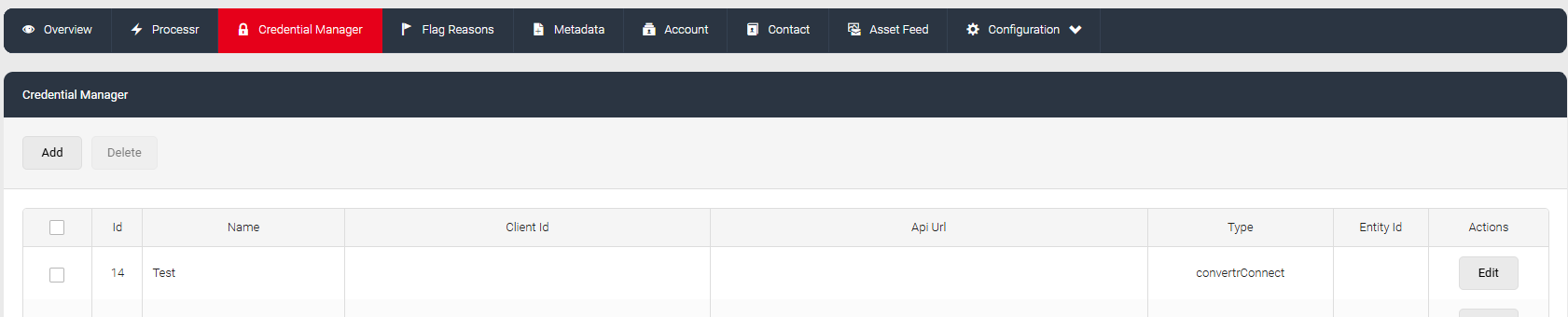
1. Navigate to the Credential Manager
Go to the Enterprise section on the left-hand navigation bar and click on Credential manager. Click the Add button to start a new configuration.
2. Define the Credential Identity
-
Name: Enter a name for the credential.
💡 Recommended Naming Convention: Use the name of the client you are connecting with (e.g., Convertr). This makes it easy to identify in the list alongside the "Convertr Connect" type.
Type: Select Convertr Connect from the dropdown menu.
3. Enter Technical Authentication Details
You will be prompted for two specific pieces of information:
Publisher API Key: This is your unique key from the target platform. You can find instructions on how to retrieve this in this technical guide under Section 3.1.
Enterprise Subdomain: This is the URL of the target platform you are connecting with (e.g.,
https://clientname.cvtr.io).
4. Save and Deploy
Once saved, these credentials are encrypted and stored at the Enterprise level. The next time you (or a teammate) create a Convertr Connect integration job on a campaign, the platform will automatically retrieve these details for selection.
What the Convertr Connect Credentials Capability Cannot Do?
🚫 Campaign Creation This capability manages credentials only; it does not automatically create or set up the actual campaigns.
🚫 Permission Overrides You cannot use these credentials on campaigns where you do not have the explicit permission to access or view campaign information.
🚫 External CRM Management This specific setup is for Convertr-to-Convertr (Connect) integrations and does not apply to external CRMs like Salesforce or Marketo unless specified in their respective credential types.