Convertr Help Centre Help Center home page
Submit a request
Sign in
  1. Convertr Help Centre
  2. Resources
  3. FAQs

How Do I Reprocess Leads? Follow

Introduction

The following document will take you through how to reprocess a lead. When a lead is reprocessed it runs through all Processr jobs again. There are many reasons you may need to do this, including:

-  Updates to the rules on the campaign

-  Leads needing to be resent to the client

Setup Process

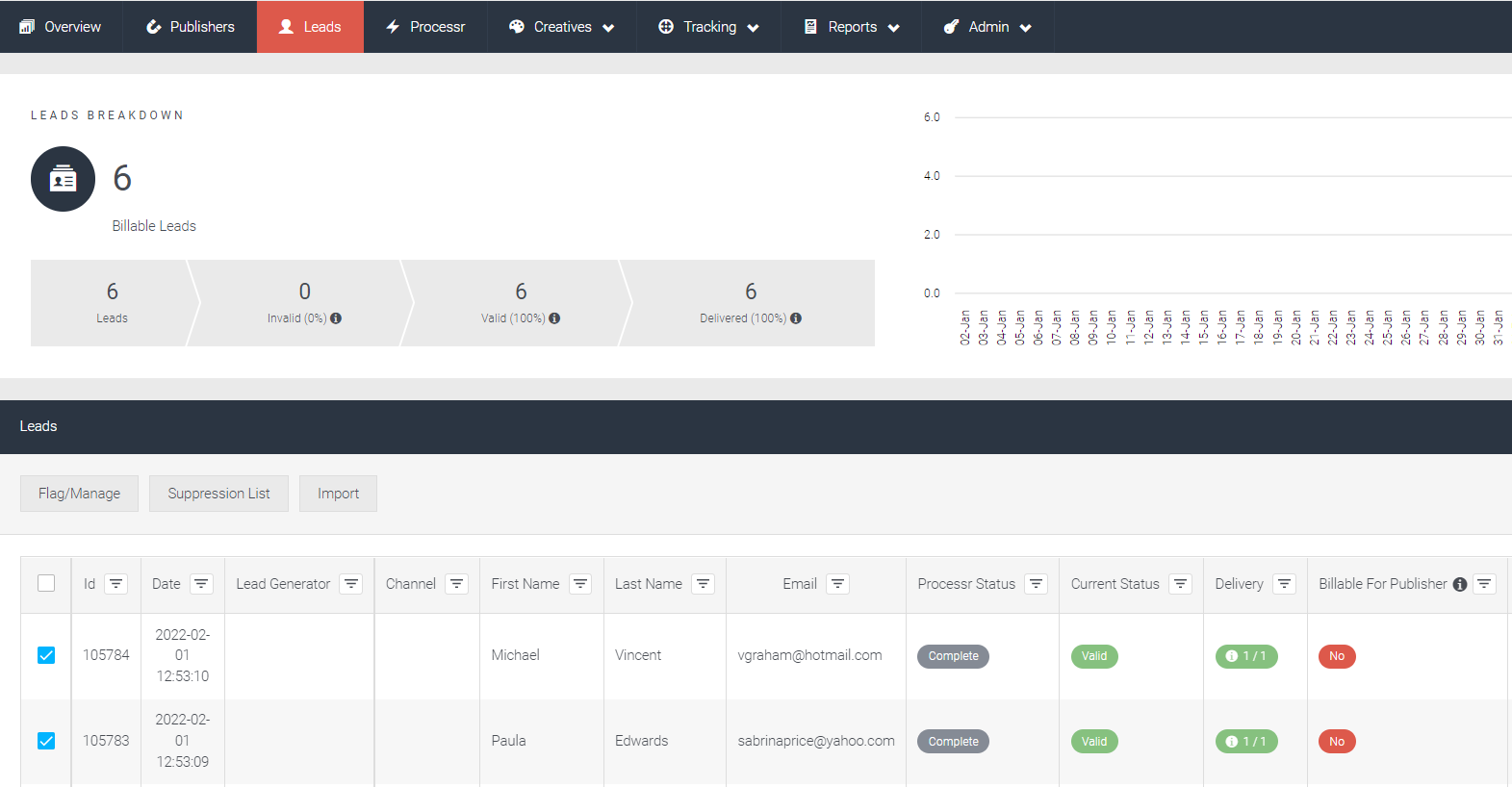
1. Select the leads that you would like to reprocess by ticking the box beside each lead.
mceclip0.png

Note: If the leads have already been delivered, you will need to mark the leads as undelivered before you can reprocess them. See the following document: 'How to Mark a Lead as Undelivered?' to action this. 

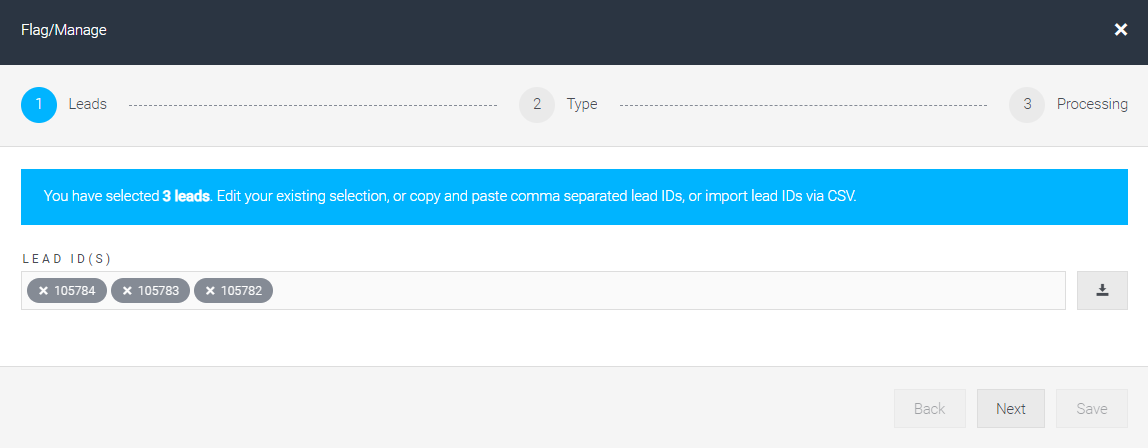
2. Click Flag/Manage and a modal will open, displaying all the lead IDs. You can also type out the lead IDs here, or paste the lead IDs from a report.
mceclip1.png

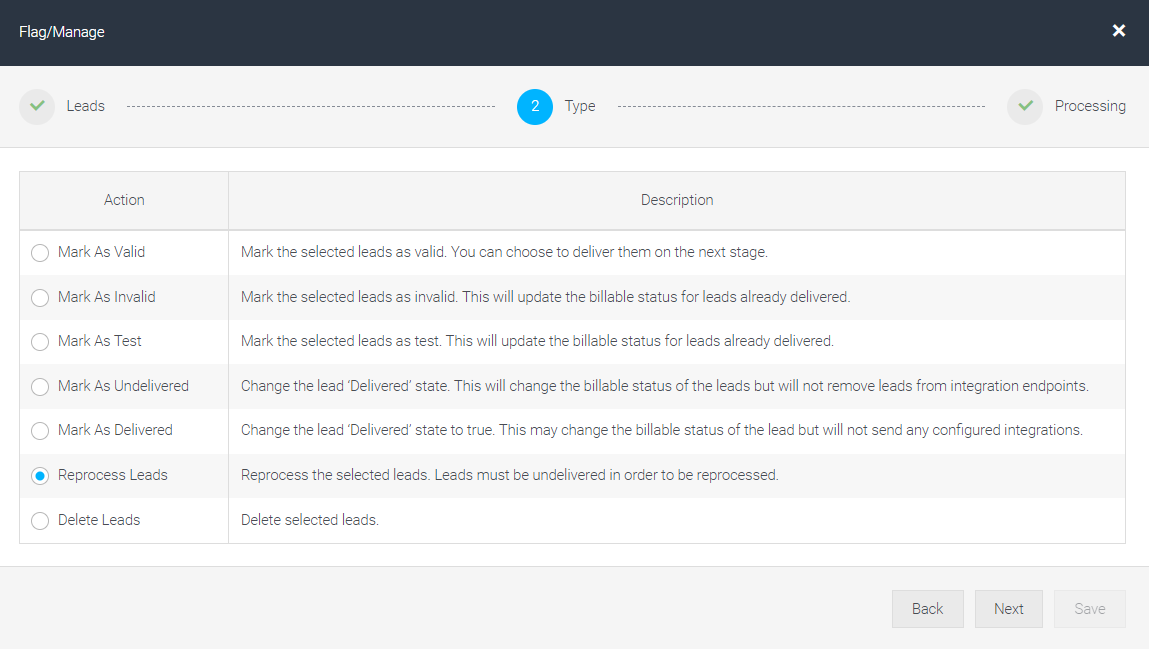
3. Click Next and select Reprocess Leads. The modal will progress to the next step.
mceclip2.png

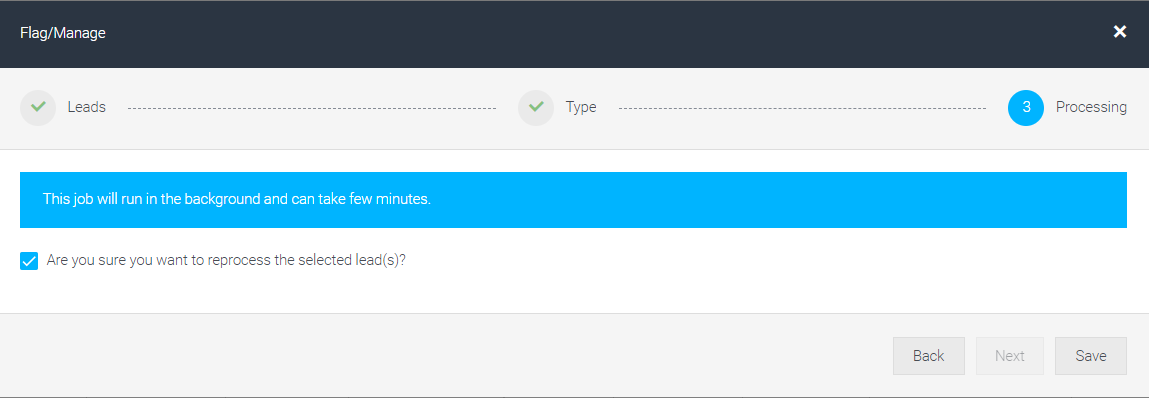
4. Once you have ticked the consent box, you can then click Save, and your leads will reprocess in the background.
mceclip3.png

5. Refresh the table contents in order to view your leads' updated status.

mceclip4.png


Important: Please note that any leads that are reprocessed would incur the same charge as a new lead, as the leads go through all the validation/verification checks again.

Articles in this section

  • Delete a Campaign
  • Extending Campaign Durations
  • How Can I Position or Resize Text and Images on the Landing Page?
  • How Do I Increase the Publisher Caps?
  • How Do I Reprocess Leads?
  • How to Increase Lead Allocation on a Campaign
  • How to Save Files in UTF-8 Format
  • Key Convertr Terminology
  • Onboarding and Implementation at Convertr
  • Password Reset
See more

Related articles

  • Bulk Lead Editing - Publisher User
  • Report Builder: Creating and Generating Reports
  • Replacement Leads In The Convertr Platform
  • Invalid Lead Reasons - What they Mean and What to Do
  • How to Mark a Lead as Undelivered
Was this article helpful?
0 out of 0 found this helpful
Have more questions? Submit a request
Return to top

Related articles

  • Bulk Lead Editing - Publisher User
  • Report Builder: Creating and Generating Reports
  • Replacement Leads In The Convertr Platform
  • Invalid Lead Reasons - What they Mean and What to Do
  • How to Mark a Lead as Undelivered
Convertr